On Android, try Tanpura Droid.
Swar Systems’ free Android app is a straightforward place to explore a recorded tanpura sound on a device you already own.
See Tanpura Droid on Google PlayYour first shruti box: choose a tool, understand its controls, and get the reference sound ready for your singing.
A shruti box supplies a drone—a sustained reference you listen to while singing. An app can do this too. Start with the equipment you have, then choose what suits your practice.
Hear pitch and volume change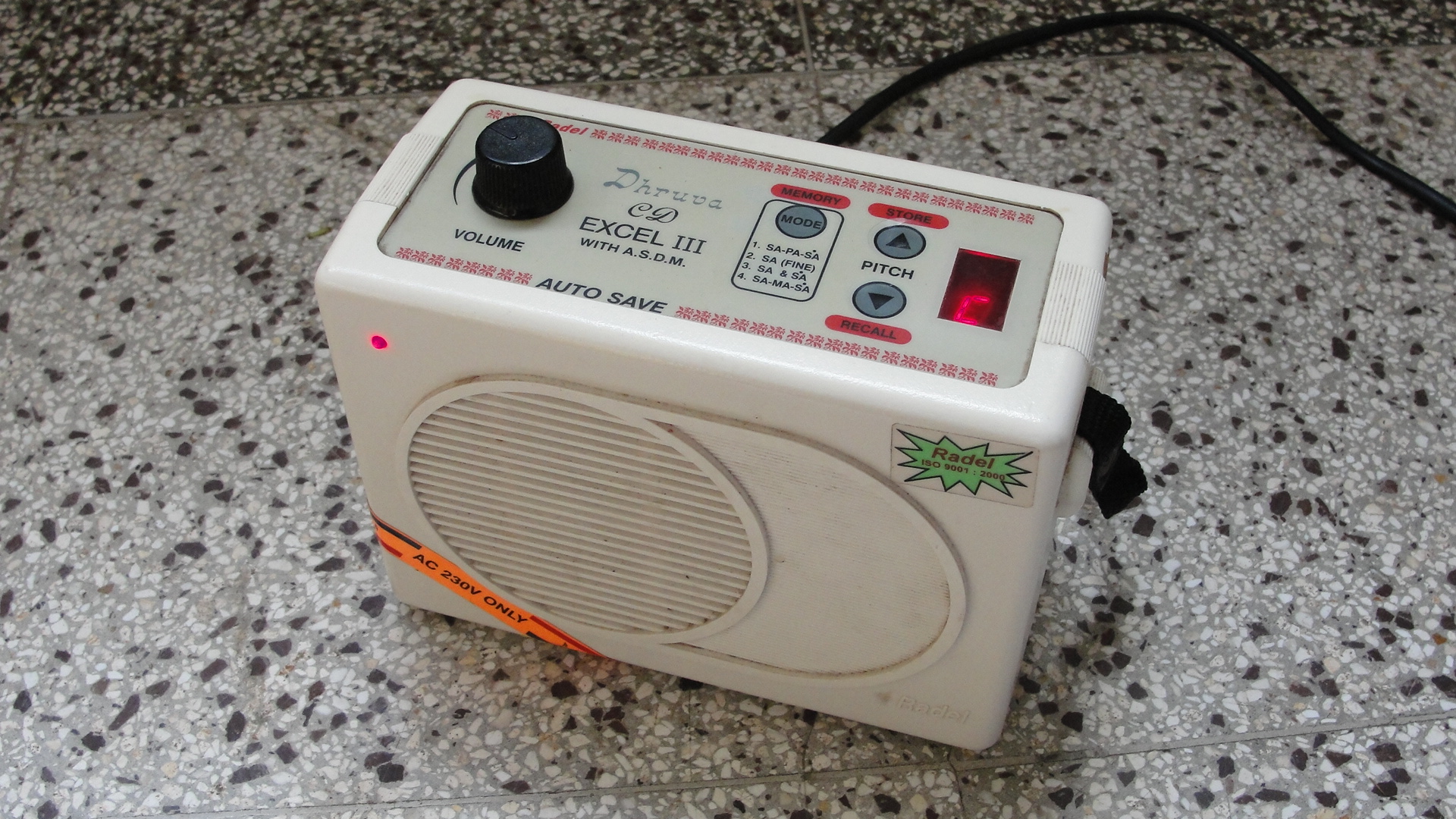
How loudly it plays.
Move the reference up or down.
Read the selected setting.
Four practical routes. These are researched options, not hands-on reviews or Krishnaveni’s product endorsements.
Swar Systems’ free Android app is a straightforward place to explore a recorded tanpura sound on a device you already own.
See Tanpura Droid on Google PlayPrasad Upasani’s paid app includes two tanpuras, a shruti box, fine tuning, and background playback. Check compatibility and regional purchase details.
See iTanpura on the App StoreRadel’s electronic shruti box supplies a harmonium-like sound, with pitch selection, fine tuning, volume, and stored settings.
See the Dhruva at Saptaswara Manufacturer manual (PDF)Radel’s electronic tambura repeats plucked sounds. Its manual describes four tuned notes, adjustable pluck and sustain, preset memories, and mains or six-AA operation.
See the Saarang at Saptaswara Manufacturer manual (PDF)Before buying a physical device, check the current model, supplied power adapter, voltage and plug, shipping, returns, and warranty for your country. App features, prices, and availability can also change.
Hear the distinction before touching the controls on your own box. First change pitch, then volume. Finally, compare a steady tone with the same tone fading after each synthetic pluck.
Synthetic examples, not product recordings, tanpura imitations, or recommended singing pitches.
Changes the frequency of the sound.
Changes the level, keeping pitch the same.
The same simple tone, with a different volume envelope.
Sound starts only when you press Play.
Start with your device volume low. Audio stops when you leave the tab or window. This demonstration does not use your microphone.
Changing pitch moves the sound higher or lower. On your own tool, use the reference setting you have discussed with your teacher.
Changing volume makes the same reference louder or softer. Aim to hear both the drone and your own voice.
A drone produces a reference. A pitch detector listens to sound and estimates its pitch. A detected note alone does not choose your practice setting.
Follow this sequence on your chosen tool. The labels and exact controls vary by product.
Locate the pitch selector. Choose the setting agreed with your teacher. If it is shown as a letter or number, keep that exact label in your notes.
Fine tuning is a separate adjustment on some tools. Leave extra settings as agreed rather than experimenting with several at once.
This sets the reference sound.
Begin playback, then adjust volume so the drone is audible alongside your voice. If it is too loud, turn down volume without changing pitch.
If your app has several sound options, confirm which drone pattern to use for the lesson.
Loudness changes; the reference stays.
Try the drone with the device you will use for your lesson call. If a call stops or changes the app’s sound, try the drone on a separate device.
Place the controls within reach, silence interruptions, and keep your lesson notes nearby.
A setup check before the lesson saves time.
Store the setting if your tool offers presets, or take a screenshot and write down the device name and pitch. Check the display when you return to practice.
Use the practice-setting worksheetSomething specific to bring to your teacher.
Start by showing your teacher what you already have. An app may provide the reference sound you need, and an existing physical device may already be suitable.
They are different sound characters. A continuous drone sustains; a tambura-style sound repeats plucks. Listen to actual product demonstrations before choosing, and discuss which you will use in lessons. The sound lab above compares a steady and a fading synthetic tone; it does not reproduce either product’s timbre.
A drone app plays a chosen setting. A pitch detector estimates a sound it hears. Neither a preset nor one detected note establishes a suitable practice pitch. Read how to begin discussing your shruti.
Product information and links checked on 25 October 2026 against the manufacturer manuals and developer listings linked above. The karnATik beginner introduction supports discussing your reference pitch with a teacher. The historical device photograph is reproduced uncropped with explanatory overlays; the annotated presentation is also available under CC BY-SA 3.0. The photographed model is not one of the current purchase suggestions.
The sound lab is an original synthetic illustration. It does not reproduce any listed product or assess your voice.
Next, make sense of the reference itself.
Finding your shruti